
A Windows 10 computer does not stop working simply because its support lifecycle ends. That is exactly why the issue can be overlooked: familiar applications still launch, documents still open, and the desktop looks unchanged. Yet a machine that remains useful can still need a new security-maintenance plan.
Microsoft’s Windows 10 end-of-support guidance identifies October 14, 2025 as the end of standard support. For a reader evaluating an older PC in 2026, the practical task is to determine its support status, assess a supported migration path, and verify data and applications before changing or replacing the machine.
Separate functionality from support
Microsoft explains that Windows 10 continues to function after end of support, while standard technical assistance, software updates, and security fixes are no longer provided under that lifecycle. A successful boot therefore does not establish a supported security configuration. Neither does a working antivirus application replace missing operating-system maintenance.
At the same time, end of support does not prove the computer has already been compromised. It describes a lifecycle condition, not an incident finding. Avoid both extremes: pretending nothing changed because the PC still works, or claiming every Windows 10 device is immediately infected. The useful response is a documented decision about continued use.
Extended Security Updates are a separate program with eligibility and enrollment conditions. Do not assume every machine receives them automatically. Consumer and organizational arrangements can differ, and their terms can change. Check the current official program information for your edition, account, region, and intended use before relying on coverage.
Build a small but complete inventory
Record the computer’s Windows edition and version, hardware model, owner, and critical applications. Include peripherals such as printers, scanners, security keys, and specialist hardware. A machine may appear replaceable until an old driver or licensed application turns out to be essential to the person using it.
Also identify how the computer is used. A personal browsing laptop, an accounting workstation, and a device controlling specialist equipment have different migration constraints. Document internet exposure, business importance, and any dependency on old software. Those details help prioritize action without making decisions based only on the purchase date.
For an organization, assign an owner and a target date to each unresolved device. A spreadsheet of hardware becomes useful when it leads to decisions: eligible upgrade, replacement, temporary supported extension, or a specialist plan. Avoid a category called “deal with later” that has no deadline or accountable person.
Check eligibility through supported tools
Microsoft recommends moving to Windows 11 where the PC meets the requirements and is eligible to upgrade. Use the current official eligibility tools and requirements rather than advice to bypass hardware checks. An unsupported installation may create a different maintenance problem and is not the default recommendation in this guide.
If the PC is eligible, review the upgrade path offered through Windows Update and the manufacturer’s support information. Check storage, firmware, drivers, and important application requirements using the current instructions. Do not assume that a general statement about Windows 11 compatibility covers every peripheral or business application attached to the machine.
If the hardware is ineligible, compare replacement with any applicable temporary security-update program. Consider the full cost: time to restore data, licenses, accessories, support effort, and the remaining useful life of the device. A short-term extension can create breathing room, but it should have an exit plan.
Prepare a backup that can actually be restored
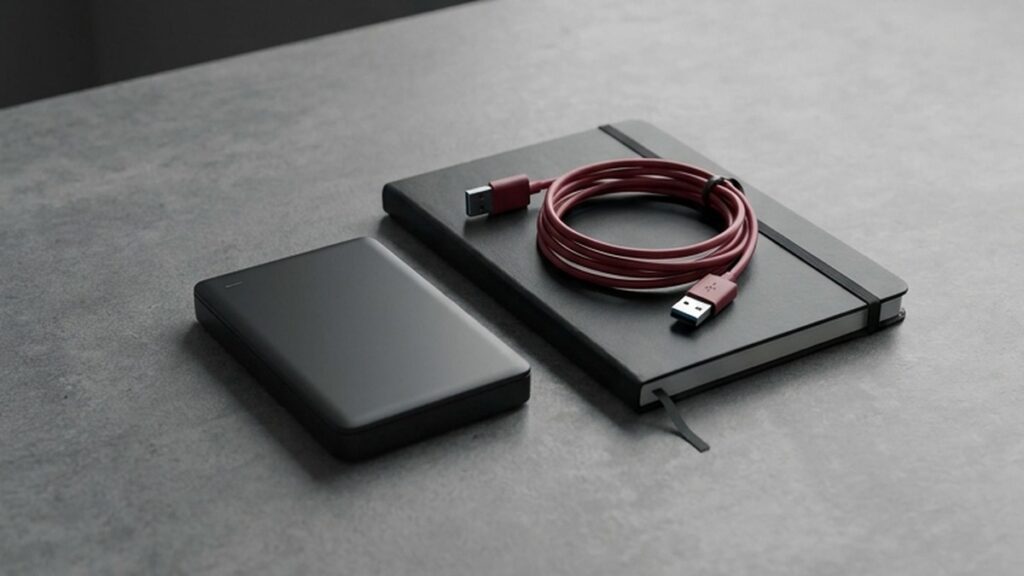
Before upgrading or replacing the computer, identify where important data lives. Include documents, photos, local application databases, browser information, and files stored outside the usual user folders. Cloud synchronization may cover some data but not everything. Review application-specific export and backup instructions where needed.
Verify a sample restore using a trusted destination. Open representative files and confirm that they are complete. A successful backup job is useful evidence, but a tested recovery path is stronger. Keep a protected copy that is not dependent on the exact machine you are about to change.
Record the account access and licenses needed after migration. Do not put passwords or recovery codes into a general inventory document. Store them through an approved credential manager or recovery process. The migration plan should explain where authorized access comes from without exposing the secrets themselves.
Test applications before committing the whole fleet
Choose a representative pilot machine or user. Install the supported environment and test real tasks rather than only launching each application. Print a document, open an existing project, connect a required accessory, run a normal workflow, and confirm that data saves in the intended location.
For business software, consult the vendor’s current support policy. An application may run technically while the vendor does not support that combination of operating system and version. Distinguish “we observed it working” from “the vendor supports it.” Both can matter to a business decision, but they are not interchangeable.
Check accessibility, usability, and authentication as well as technical compatibility. A migration that preserves a database but disrupts the person’s daily workflow is incomplete. Document the changes users will notice and provide a clear way to report problems during the pilot.
Treat security-update extensions as a bridge
If an applicable ESU program is part of the plan, verify enrollment and actual update status. A page describing availability is not proof that a particular computer is covered. Keep records of the relevant arrangement and confirm successful maintenance through the supported reporting or update interface.
Recheck program terms before committing. Dates, pricing, and conditions can vary across consumer and organizational programs and may change after this article’s source check. Avoid relying on an old screenshot or a date copied from another edition’s guidance. Use the current official page for the arrangement you actually need.
Set a replacement or migration deadline before the temporary coverage ends. A bridge is useful because it allows testing and procurement without an immediate rushed change. It becomes less useful if it simply postpones the same unsupported configuration until the next deadline arrives.
Plan cutover and recovery together
Schedule the change when the user can tolerate downtime. Keep the original data protected until the new setup is verified. Define what constitutes success: essential applications work, required files are present, updates are current, backups are configured, and the user can authenticate without depending on the retired machine.
Have a recovery decision ready if the pilot fails. Depending on the supported process, that may mean restoring from a backup, using a retained known-good device temporarily, or resolving a vendor compatibility issue before proceeding. Do not assume every upgrade has an unlimited or consequence-free rollback option.
For a fleet, expand gradually after the pilot meets its acceptance criteria. Keep unresolved exceptions visible and owned. A headline saying “migration complete” should not conceal the small set of machines still tied to old hardware, unsupported drivers, or an untested application.
Retire the old device responsibly
After verifying the replacement, remove accounts and access that the old device no longer needs. Follow approved data-erasure and disposal procedures appropriate to the storage device and sensitivity of the information. Merely deleting a few folders is not a reliable retirement process for a computer that held business or personal data.
Check licenses, management enrollment, backups, and inventory records as part of retirement. Preserve the information you need for compliance or support, but do not retain unnecessary credentials. If the device is donated or recycled, use an established process and verify the data-handling requirements before it leaves your control.
The practical takeaway
Windows 10 lifecycle planning is a decision about support, compatibility, and recovery—not whether the desktop still appears functional. Inventory the machine, verify a supported path, test the important workflows, and use temporary coverage only with a clear exit plan.
Source checked October 8, 2026. Recheck Microsoft’s lifecycle guidance and the current ESU terms before making a later purchasing or enrollment decision.
